Knowledge Base › MultiCHAX 11 › Troubleshooting and reference
Troubleshooting and reference
Fix printing, Incoming checks, PDF import, and database problems, and look up terms, common questions, and what is new.
Windows7 guides

Knowledge Base › MultiCHAX 11 › Troubleshooting and reference
Fix printing, Incoming checks, PDF import, and database problems, and look up terms, common questions, and what is new.
Find what you’re seeing, from misplaced fields and unreadable MICR lines to demo checks or nothing printing, and how to fix it.
Go to Settings › Check alignment and choose Print test page. The test check has VOID across it, with the check and the MICR clear band outlined, so you can measure how far off it is.
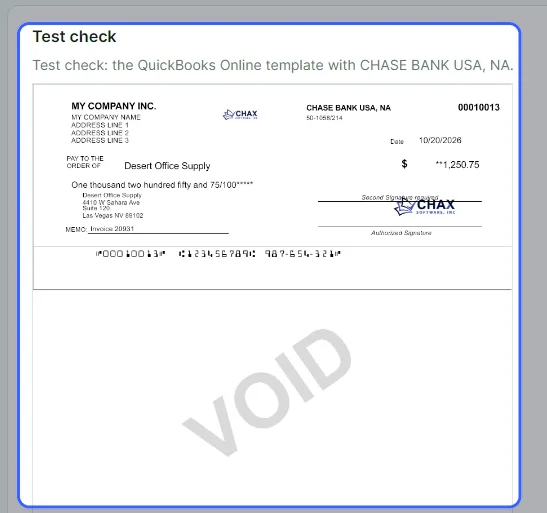
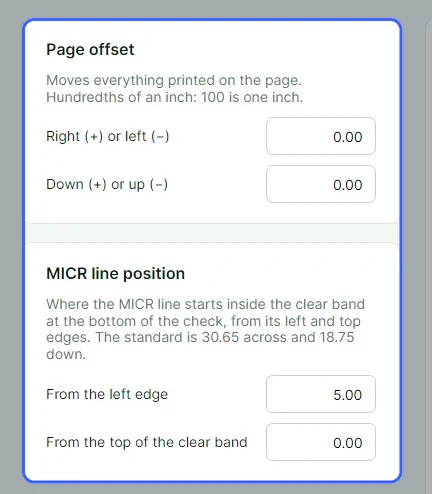
Lay the test page on a sheet of check stock and hold both up to a light. If everything is off by the same amount, change the page offset. If only the MICR line is off, change the MICR line position.
In Settings › Printer and stock, confirm that MICR printer and Tray with check stock are right for this PC. Checks always print at 100% on Letter paper.

Offsets are in hundredths of an inch, so 100 is one inch. Positive numbers move things right and down.
| What you see | What to do |
|---|---|
| Everything is a little too far right, left, up, or down | Change Page offset in Check alignment. For example, when the check prints 1/8 inch too low, enter -12.5 under Down (+) or up (−). |
| The check is at the top of the page but your stock has it in the middle | The check template sets the check position. Choose a template with the right position, or change it on the template’s Output tab. Read The template designer. |
| One field, such as the date or memo, is in the wrong place | Move that field in the template designer. |
| The check prints smaller than the stock | The printer or its driver is scaling the page. In the printer’s own settings, turn off “fit to page” or “shrink” so it prints at 100%. |
| Checks print on plain paper, not check stock | Pick the tray holding your check stock under Tray with check stock, or in Check tray when you print. |
| Captions or lines print on top of ones already on your stock | Turn them off on the template’s Captions tab. |
30.65 from the left edge and 18.75 from the top of the clear band. Reset offsets restores these values.| What you see | What to do |
|---|---|
| D E M O V O I D across the check, and a sample MICR line | MultiCHAX is in trial mode. Activate the license in Settings › License. |
| Your subscription has ended, and nothing prints | The subscription ended, which makes MultiCHAX read-only. Renew it from the banner. Read When a subscription ends. |
| VOID across the check | Either Print VOID across these checks (for test prints) is ticked in Incoming checks, or you used a sample file. Untick the box. |
| No printer is installed on this computer. | Add the printer in Windows, then choose it in Printer and stock. |
| … was the MICR printer, but it isn’t installed on this PC any more. | Someone removed or renamed the printer in Windows. Choose the printer you want and save. |
| … couldn’t print: … | Windows reported a printer error. Make sure the printer is on, has paper, and isn’t paused, then print again. |
| Nothing came out of the printer, but the checks are in Transactions | Your MICR printer may be a PDF printer, such as Microsoft Print to PDF. In that case, the checks are saved as PDFs in the PDF folder set in PDF security. |
| The secure font … isn’t in the Fonts folder, so the payee and amount print in the template’s fonts. | The secure font file is missing from the Fonts folder next to MultiCHAX. Reinstall MultiCHAX, or turn off the secure font in Secure font and sign-in. |
| Two or more copies of each check | The bank account’s Copies of each check is above 1. Change it in Bank accounts. |
| A second signature line you didn’t expect | The bank account is set to Two signature lines from a certain amount. |
Checks from Incoming checks, Write check, or Blank checks are recorded once they go to the printer, so the number is used up. Reprint the check from Transactions. It prints with the same number and details, and it isn’t recorded a second time. Destroy the spoiled check.
Import from PDF works differently. After printing, it asks Did all the checks print correctly? If a page jammed, misprinted, or is missing, choose No. Nothing is recorded, and you can print them again.
Each printer feeds paper a little differently, so the page offset and MICR line position are saved per PC and Windows user. A fix on one PC doesn’t carry over to another. The previous version of MultiCHAX on the same PC uses these same offsets.
All MultiCHAX previews show a Letter page at 100% scale, with this PC’s offsets applied. Print a preview PDF at actual size to see exactly where things land.
Find the cause and the fix when a print job doesn’t appear, a check has no amount, the bank account is wrong, or automatic printing didn’t print.
Work through these checks in order. The print folder and the virtual printer have to match, because Incoming checks looks for jobs in the place the virtual printer saves them.
In your accounting program’s print window, pick the MultiCHAX printer and not your real printer. If Settings › Accounting software reads Not installed, use MultiCHAX setup to install the MultiCHAX printer.

The Incoming checks heading names the folder it watches, such as Watching C:\multichx\temp. That has to be where the virtual printer saves. Each PC has its own print folder, and you can change it in Accounting software.

A job shows up only after your accounting program finishes printing it. Open it too early and you see The accounting program is still printing this job. Try again in a moment.

When Print checks as soon as they arrive is ticked, jobs print on their own and leave the list. Look for them in Transactions.

A template reads the amount from one spot on the print file’s page. If your accounting program prints it elsewhere, MultiCHAX holds the check with No amount and tells you where it found the amount:
To fix the template, open it in the template designer and read this print file on the Source tab. Click the amount to set the Amount position. In the meantime, you can type the amount yourself with Change check….
| What you see | What to do |
|---|---|
| Checks print from the wrong bank account | With automatic numbering, the first digits of the check number choose the account. Review Bank number digits on the template’s Output tab and each account’s Bank number. To print a single check from another account, use Change check. |
| No bank account 002 | None of the bank accounts you may use has number 002. Add it, or ask an administrator to give you access in Users & permissions. |
| Over your $1,000.00 limit | The amount is above your largest allowed check. An administrator can raise that in Users & permissions. |
| The payee, date, or memo is wrong or cut off | The template is reading from the wrong place. Correct the positions on its Source tab. |
| … wasn’t printed automatically: choose the MICR printer in Incoming checks first. | Automatic printing needs this PC’s saved MICR printer. Choose it in Printer and stock. |
| A job stays in the list with automatic printing on | Automatic printing uses your default template only, and only if that template numbers checks automatically. Jobs for manual or semi-automatic templates and held checks wait for you. |
| This job has 40 checks, and 12 of this month’s 300 are left. | Standard prints 300 checks a month. Skip some checks, or see Compare the editions to upgrade. |
| Couldn’t remove … from the print folder. | The checks printed and are recorded, but the job’s files are in use. Delete them from the print folder yourself, so they don’t print twice. |
| The checks printed, but they couldn’t be recorded | MultiCHAX lost the database after printing, and the job stays in the print folder. Look in Transactions before you print it again, and see Fix database connection problems. |
| A job named …-held | These checks were held the last time you printed this job. Fix and print them, or delete the job. |
The MultiCHAX printer creates a .grp file and a .txt file for each job. The job is finished once the .grp says so and the .txt is closed. A Miraplacid .xml job is finished once the file is closed.
The Source tab measures positions in printer pixels, 300 per inch, from the top left of the printed page. MultiCHAX reads everything to the right of the amount’s position on that line.
Look up any Blocked or Needs review message in Import from PDF, learn what it means, and get the check ready to print.
Analyze marks each check Ready, Needs review, or Blocked. Choose a check, and the box at the top of the middle column gives the reason. Yellow items need a look. Red items must be fixed before the check can print.

A QuickBooks Online payroll check needs a check number and a bank account. Bank for all and Number checks fix every check at once.
| Message in PDF sources | What to do |
|---|---|
| … MultiCHAX can only import PDFs that contain text; scanned checks aren’t supported. | Don’t scan printed checks. Save the checks as a PDF from your accounting program again. |
| This release imports US Letter (8.5 x 11 in) check pages only. | In your accounting program, save the PDF on Letter paper. |
| … has two checks. Supported layouts are one check (with up to two stubs) or three checks per page. | In your accounting program, pick a layout with one check or three per page. |
| A page is rotated | Save the PDF again with its pages upright. |
| No checks were found. Open PDF sources to see why. | Expand PDF sources, where each file lists its problem. |
| Message | What to do |
|---|---|
| QuickBooks doesn’t print check numbers on payroll checks. Enter a starting check number to number the checks. | Enter the first number in Starting # and choose Number checks. The box begins at the bank account’s next number. |
| This PDF has no check number. … | Follow the same steps, or type the number on the check. |
| Select the bank account to print this check from. | Pick it under Bank for all and choose Use for all, or pick it on the check. |
| The PDF’s MICR line shows a different routing number than the selected bank account. | The selected account is wrong. Pick the one with the routing number shown on the PDF. |
| No payee was found. / No check amount was found. / No check date was found. | Type what’s missing. To read the next PDF like it correctly, tick Remember field mapping for this layout. |
| The written amount (…) and the numeric amount (…) don’t agree. | Compare with the PDF and correct the wrong one. Or clear Written amount, and MultiCHAX writes it out for you. |
| The payroll stub’s net pay (…) doesn’t match the check amount (…). | Review the paycheck in your payroll program before you print. |
| … is over your maximum check amount of …. | This is above your largest allowed check. An administrator can change that in Users & permissions. |
| Check number 1050 is also used by the check to … in this import. | Two checks in the import share a number. Give one of them a new number. |
| This PDF has three checks per page, but the check template isn’t a three-per-page template. … | Pick a Check template that fits the PDF, with the same check position or three per page. |
| Message | What it means |
|---|---|
| No written amount was found; MultiCHAX will write it out from the numeric amount. | Read the amount in words in Print preview. |
| Some fields were changed by hand; confirm them before printing. | You edited this check. Confirm it when you’re sure it’s right. |
| Check number … on this account was already printed on …. Confirm this is an intentional reprint before printing. | Confirm only if you intend to use that number again, such as after a jam. |
| Check the payee (…): … | MultiCHAX isn’t certain it read this field correctly. Compare it with the source PDF. |
| Message | What to do |
|---|---|
| 3 ticked checks aren’t ready: … Confirm or fix them, or untick them to leave them out. | Ready checks are the only ones that print. Fix the others, or untick them. |
| Your Standard license prints 300 checks a month and … have printed this month … | Untick some checks, wait until next month, or see Compare the editions to upgrade. |
| There are no check templates. Add one under Check templates first. | Add a ready-made template in Check templates. |
| The print preview is empty | Pick a bank account and a template that fits the PDF. |
If you tick Remember field mapping for this layout and confirm a check, MultiCHAX saves each field’s place on the page, plus the bank account, for PDFs with that layout. It stores them on this PC in %LocalAppData%\CHAX Software\MultiCHAX\PdfMappingProfiles. To see where each value came from, open Extraction details on the check.
MultiCHAX makes no updates in QuickBooks or Xero. If your program asks whether the checks printed, answer in that program.
Look up the message you see when MultiCHAX opens on Welcome to MultiCHAX 11 or can’t reach the database, and follow the fix.
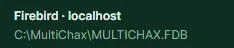
The bottom of the sidebar names the server and database file. localhost means the database is on this PC.
If the database won’t open at startup, you see Welcome to MultiCHAX 11. The problem appears in red above the Server and Database file on the server boxes and Try again. Fix the cause from the table below, and then choose Try again. If you changed the boxes, choose Test connection.
| Message | What to do |
|---|---|
| MultiCHAX can’t reach a Firebird server on OFFICE-PC. Check that the server PC is on and Firebird is running. | Turn on the server PC. In Windows Services on that PC, confirm the Firebird server is running. Confirm its Windows Firewall allows Firebird (TCP port 3050). |
| MultiCHAX can’t reach the database server OFFICE-PC: … | The PC name is wrong, or the network is down. Confirm this PC can see the server PC. Try the server’s IP address in Server. |
| There’s no MultiCHAX database at C:\MultiChax\MULTICHAX.FDB on OFFICE-PC. Check the file, or create a new database. | Firebird responded, but the file isn’t at that path. Enter the path as the server PC sees it, and don’t use a mapped drive. Choose Create a new database here only when you’re starting fresh. |
| The Firebird server on OFFICE-PC didn’t accept the MULTICHAX user. Set up the MULTICHAX user with the server’s SYSDBA password. | Follow Set up the MULTICHAX user. |
| Enter the server (this PC is localhost) and the database file. | Fill in both boxes. |
| Test the connection first. | Choose Test connection, and then Use this database. |
| MultiChax.xml couldn’t be saved at … | MultiCHAX couldn’t write its settings file beside the program. Run MultiCHAX as administrator once, or ask IT to allow writing to its folder. |
MultiCHAX connects to Firebird with a user named MULTICHAX. A new Firebird server doesn’t have this user yet, so it refuses the connection.
Open Set up the MULTICHAX user on this Firebird server on the welcome screen, or under Settings › Database & backup › Change database…. It opens by itself after the server refuses the user.

Change database leads to the user setup.
In SYSDBA password, type the password chosen when Firebird was installed on the server. MultiCHAX doesn’t store it.
Choose Set up the MULTICHAX user. When you see The MULTICHAX user is set up., test the connection again. All PCs in the office then use this same user.
| What you see | What to do |
|---|---|
| MultiCHAX can’t open on this PC: A Standard license runs MultiCHAX on 2 PCs, and 2 are already registered. | On a PC that opens, go to Settings › Database & backup › PCs using MultiCHAX and remove a PC you’ve stopped using. Then choose Check again. You can also upgrade to Professional. |
| The MultiCHAX trial runs on one PC only. Activate a license to use MultiCHAX on this PC. | Use the License page below the message to activate a license. |
| Connected · version 6, newer than this MultiCHAX (5) | Another PC has a newer MultiCHAX. Update this PC. |
| The checks printed, but they couldn’t be recorded | The connection dropped after printing. Restore it, and look in Transactions before you print the job again. |
| Something went wrong | Choose Try again. If it continues, open Details for support and send that to support. |
MultiChax.xml, beside the program file, holds the server and database file. Use this database rewrites this file and restarts MultiCHAX.
localhost is this PC. For another PC, use its name, such as OFFICE-PC. When Firebird uses a port other than 3050, put it after a slash: OFFICE-PC/3051.
MultiCHAX opens the database, upgrades it if it’s older than this MultiCHAX, and then checks the license. It leaves a database that’s newer than MultiCHAX unchanged.
Plain definitions of the terms you’ll meet on MultiCHAX screens and in these guides.
| Term | Meaning |
|---|---|
| Payee | The person or company you’re paying, named after “Pay to the order of”, such as a vendor or an employee. Payees are listed in Payees & payers. A default payee fills in on each new check. |
| Payer | The sender of the check: the bank account’s holder, printed at the top left. On Write check, the payer is always taken from the bank account the check is drawn on. |
| Account holder | The name and address stored with a bank account, which print as the payer. |
| Blank check | A check with the bank account’s details, the number, and the MICR line, but no payee or amount, so you can complete it by hand. See Blank checks. |
| Manual check | A check you type in on Write check, not one printed from your accounting program. |
| Held check | A check in Incoming checks that can’t print until it’s fixed, for example when it has no amount or is over your limit. |
| Stub (voucher) | The section above or below the check that lists what it pays. It stays with you or goes with the payment. |
| Void | The word printed across test and sample checks so nobody can use them. |
| Demo check | A trial-mode check with a sample MICR line and D E M O V O I D across it. Banks won’t accept it. |
| Term | Meaning |
|---|---|
| MICR line | The numbers along the bottom of a check: check number, routing number, and account number. They use the E-13B font, which bank machines read magnetically. See Anatomy of a check. |
| MICR toner | Laser toner containing iron oxide, which lets bank machines read the MICR line. |
| Clear band | A strip about 5/8 inch high along the bottom of the check, reserved for the MICR line. |
| Routing number (ABA number) | The 9-digit number that identifies a bank and starts the MICR line. Many banks have several. |
| Transit number | The fraction near the check number, such as 81-701/829. It’s another way of naming the bank. |
| Bank number | A number from 1 to 999 that MultiCHAX gives a bank account. With automatic numbering, the first digits of a check number are this number, and they choose the account. |
| Routing directory | The MultiCHAX list of banks by routing number, which supplies a bank’s name and address. See The bank routing directory. |
| Term | Meaning |
|---|---|
| Check stock | Blank security paper for checks, with the check in the top, middle, or bottom third, or three to a page. |
| MICR printer | The laser printer with MICR toner that prints your checks. You choose it on each PC. |
| Virtual printer (MultiCHAX printer) | Not a physical printer. Your accounting program prints checks to it, and it saves them as a print job for MultiCHAX. |
| Print job, print file, print folder | A print job is the set of checks from one print in your accounting program. The virtual printer saves the job as print files (.grp and .txt, or .xml) in the print folder, and Incoming checks finds it there. |
| Check template | The record of where each value is read from in the print file and where it prints on the check, plus the check’s position on the page and how checks are numbered. See Check templates. |
| Automatic numbering | Keeps the check numbers from the print file. Their first digits choose the bank account. |
| Manual numbering | Numbers the checks from a bank account and starting number you choose. |
| Semi-automatic numbering | Numbers the checks from a starting number you type. Its first digits choose the bank account. |
| Page offset and MICR offset | Small adjustments in hundredths of an inch that line up printing with your check stock on one PC. See Check alignment. |
| Secure amount font | A font for the amount that’s hard to alter by hand (Enterprise). |
| Term | Meaning |
|---|---|
| Database | The Firebird database file that all PCs share, usually C:\MultiChax\MULTICHAX.FDB. It holds your bank accounts, templates, users, and checks. |
| Server PC | The PC that has the database and runs the Firebird server. Other PCs connect to it. |
| Firebird | The database server that MultiCHAX uses. |
| SYSDBA | Firebird’s administrator account. |
| MULTICHAX user | The account MultiCHAX uses to sign in to Firebird. |
| Edition | Standard, Professional, or Enterprise, which sets what your license allows. See Compare the editions. |
| Trial mode | How MultiCHAX runs with no active license. Everything works, but checks print as demo checks. |
| Transactions | The MultiCHAX record of each check it printed or exported. |
| Administrator | A user allowed to change bank accounts, check templates, users, and settings, and to remove transactions. |
Quick answers to the most common MultiCHAX 11 questions, with links to the full guides.
Yes. MultiCHAX 11 works with your existing MultiCHAX database as it is, and both versions can use it at once. You can move one PC at a time. Read Upgrading from a previous version of MultiCHAX.
No. When MultiCHAX 11 first starts on a PC that had a previous version of MultiCHAX, it activates the license the previous version registered. If that doesn’t work, enter it in Settings › License.
Not yet. It runs on Windows 10 and 11.
Contact support for the starting sign-in details. Change the password in Users & permissions before you turn on sign-in.
MultiCHAX is in trial mode. All features work, but your checks print as demo checks until you activate a license. Read Activating your license.
You need a laser printer with MICR toner, so banks can read the numbers along the bottom. Print at 100% on blank check stock on Letter paper. Read Printer and stock.
Any program that can print checks to the MultiCHAX printer works through Incoming checks, such as QuickBooks Desktop or Quicken. QuickBooks Online and Xero save checks as PDFs, so use Import from PDF with the ready-made templates.
No. MultiCHAX changes nothing in your accounting program. If your program asks whether the checks printed correctly, answer it there.
Find the check in Transactions and choose Reprint…. It keeps the same number and details, and it isn’t recorded a second time.
Yes, with a three-per-page check template. Write check prints one check in the top place on the sheet.
Standard allows 300 checks a month. Professional and Enterprise have no monthly limit. The count includes checks printed or exported as PDFs, and blank checks. Read Editions compared.
MultiCHAX becomes read-only. You can view your records and back up the database, but you can’t print or change anything. After 30 days, it locks until you renew. Your records are kept. To renew, use the banner at the top of every page. Read When a subscription ends.
The trial runs on one PC and Standard on 2. Professional and Enterprise have no limit. Each PC needs its own activation. Read Using MultiCHAX on more than one PC.
They’re in the MultiCHAX database on your server PC, usually at C:\MultiChax\MULTICHAX.FDB. The only thing sent to CHAX Software is your license details, for activation.
Go to Settings › Database & backup and choose Back up now. Keep a copy somewhere other than the PC. Read Your database and backups.
Yes. In Users & permissions, choose Only some bank accounts and set Largest check this user may print. Then turn on sign-in in Secure font and sign-in.
Yes. All PDFs are encrypted, and you can turn off copying and editing. Set a password in PDF security and give it to the payee separately.
MultiCHAX 11 is rebuilt from the ground up and works with your existing MultiCHAX database. See what’s new, what stays, and what changed.
| Feature | What you get |
|---|---|
| Home | This month’s checks, the amount printed, waiting jobs, your license, a 6-month chart, and recent checks. |
| Incoming checks | A look at each check before it prints. Correct the bank account, payee, amount, date, or memo, skip a check, or hold one back. Held checks wait for later and don’t stop the job. |
| Automatic printing | An option to print checks the moment your accounting program prints them. |
| Import from PDF | Printing from QuickBooks Online and Xero PDFs, with ready-made templates, bill tables on the stubs, and checks for wrong amounts, duplicate numbers, and the wrong bank account. |
| Write check | Finding a bank account by property, bank, number, or last 4 digits, and a review screen to confirm each check before it prints. |
| Blank checks | A layout of their own with lines to fill in. They’re recorded in Transactions, so each number is used once. |
| Reports | Transaction reports by date, payer, or payee, for printing, PDF, or Excel. |
| Backup and restore | Backups while everyone keeps working, and safe restores that keep the old database. |
| PDF security | AES-256 encrypted PDFs, with a password and permissions you set. |
| Light and dark | A choice of light or dark look, and of the screen MultiCHAX opens on. |
| Uninstaller | Removal of MultiCHAX 11 alone, with a backup offered before any data is deleted. The previous version of MultiCHAX is left in place. |
| The previous version of MultiCHAX | MultiCHAX 11 |
|---|---|
| A check with no amount in the template’s spot printed without one. | The check is held, and MultiCHAX tells you where the amount really is. |
| A check over your maximum amount stopped the rest of the job. | Only that check is held, and the others print. |
| Printing emptied the whole print folder. | Only the printed job’s own files are removed. |
| Blank checks, PDFs, and reprints didn’t count toward Standard’s monthly limit, which stopped at 299. | All checks count, and all 300 can print. |
| Blank checks weren’t recorded. | They appear in Transactions, and the bank account’s next number advances. |
| The second signature line was saved but never printed. | It prints from the amount you set. |
| Looking up a routing number overwrote the bank’s details. | MultiCHAX shows the directory’s details and changes nothing until you choose Use these details. |
| Removing transactions happened with no prompt. | MultiCHAX asks first, and only administrators can remove checks. |
| Export to Excel could leave masked numbers behind, so a reprint had a masked MICR line. | Numbers are masked in the exported file and nowhere else. |
| Duplicating a template ignored the edition’s template limit. | The limit covers both new and duplicated templates. |
| You could change an account number after printing checks on it. | The number locks once checks are printed. Add a new bank account instead. |
MultiCHAX 11 works with database version 5. For an older MultiCHAX database, it adds the newer tables with the previous version’s own upgrade scripts, so the previous version of MultiCHAX continues to work with it.
While open, MultiCHAX 11 checks its license with CHAX’s license server once a day. Your license keeps working if the server is out of reach.
Talk to the support team, or browse all MultiCHAX 11 help.
Contact Support All MultiCHAX 11 Help